Written Notes
These notes are to support R users on how to:
Create a Quarto website, and
Host it on GitHub pages
Video Lecture
Quarto Basics
Quarto is an open-source publishing system that is very similar to R Markdown. Quarto can be used to create interactive webpages and slide decks that you can use with R or Python to execute code!
In this workshop, we will use Quarto to build a basic webpage, and host it on GitHub.
Step 1: Get Set-up with GitHub!
If you already have RStudio connected to GitHub, skip this step!
Step 1.1: Sign up for a GitHub account
- I’d recommend using your personal email, not a student email.
Step 1.2: Install Git
Windows:
Open Command Prompt and type
where git. If you get an error, continue:Install Git for Windows (https://gitforwindows.org/)
When asked about “Adjusting your PATH environment”, make sure to select “Git from the command line and also from 3rd-party software”. Otherwise, keep the defaults.
Mac OS:
On the Terminal (Mac) type
which git. If you get an error, continue:Install XCode Command Line Tools by opening Terminal and typing
xcode-select --install(more info here)In Terminal, enter
git config. Click install.
Step 1.3: Configure Git in R
Within the Terminal (Mac) or Shell (Windows) within RStudio (Tools > Terminal/Shell) do
git config --global user.name "your_github_username"git config --global user.email "your_email_you_used_for_github@example.com"
(If you are having issues, you could use the usethis package in R. See here.)
Step 1.4: Configure Your Personal Access Token (PAT)
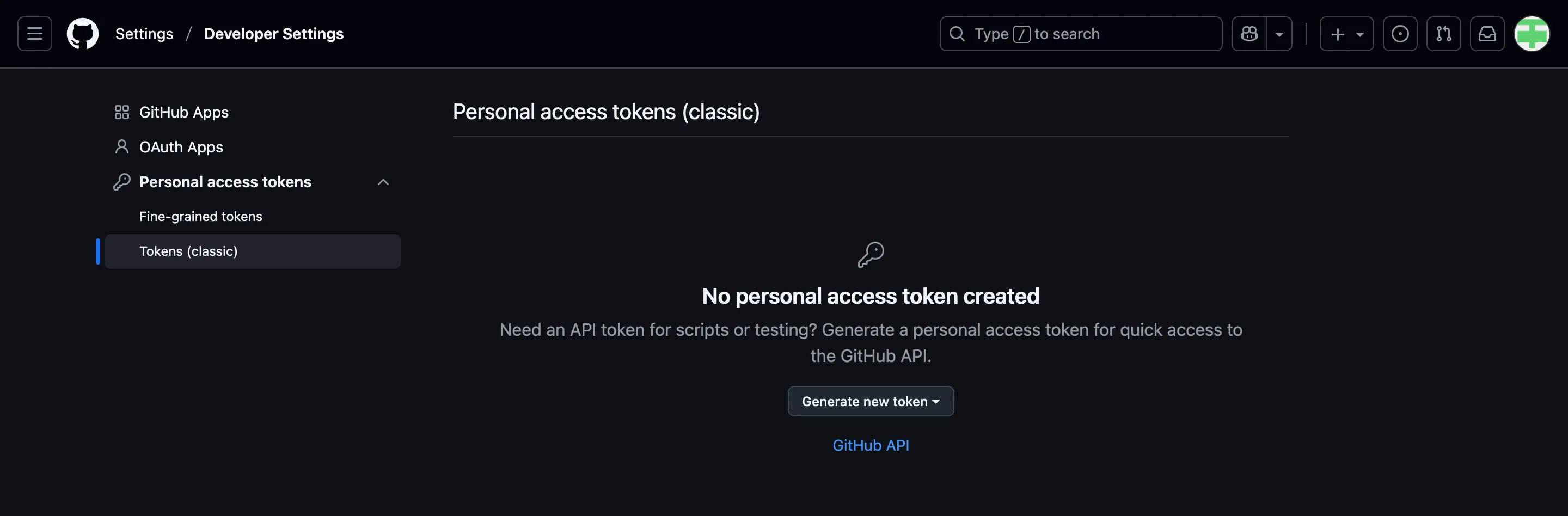
Option 1: Go to to https://github.com/settings/tokens and click “Generate token”.
Choose Classic Token
Describe the token’s purpose in the Note field, e.g. “personal-macbook” or “Stat545Installation”
Select “repo”, “user”, and “workflow” for scopes
Set an expiry date (can regenerate tokens later)
Save this token somewhere so you can use it again later, such as a password manager
Option 2: From R, execute
usethis::create_github_token()in the Console (you may have to install the usethis package first by first runninginstall.packages("usethis")).Describe the token’s purpose in the Note field
Set an expiry date (can regenerate tokens later)
Save this token somewhere so you can use it again later, such as a password manager
Regardless of how you generated your PAT, you now need to:
Run
install.packages("gitcreds")in the ConsoleRun
gitcreds::gitcreds_set()and enter the PAT that you just made when prompted- Note: the password will not show up when pasted! Paste once and press enter.
Step 2: Install Quarto
Before continuing, ensure that you’ve installed Quarto using these directions.
Step 3: Create a Quarto Website
Step 1.1: In RStudio, create a New Project.
Select “New Directory” and then find “Quarto Website”.
If given an option for version control, select Git. A simple build of a two paged website will generate.
Name the project “yourusername.github.io” if you want a personal website, or any other project name.
- NOTE: if you do not use “yourusername.github.io”, the website will be at “yourusername.github.io/yourprojectname” by default.
Step 1.2: In the Terminal, run touch .nojekyll (Mac OS) or copy NUL .nojekyll to disable Jekyll.
Step 1.3: Within the RStudio project, navigate to the _quarto.yml file in your files (right hand pane). Under the project: preamble, add output-dir: docs.
Step 1.4: Navigate back to index.qmd. Save and click the Render button. A local version of this simple website will appear.
Now, we should send this to GitHub so we can host our website on GitHub and make changes both locally and through GitHub. To do so, we need to connect this R Project with Github.
Step 1.5: When you made this project, you should have selected to use Git as a version control. If not, head to Tools > Version control > Project Setup and select Git as your version control. At this time, origin should be set to none.
Step 1.6: In the Console:
Load in the
usethispackage withlibrary(usethis)Run
use_git()and select the option that will commit all changesRun
use_github()to create a github repository with the same name as your R Project.
Step 1.7: Now will be working in the terminal to give commands to our computer to connect with Github. You can equivalently use the “Git” tab in RStudio to stage, commit, and push changes.
SAVE ALL FILES. In the Terminal (beside the Console in RStudio)
Run
git add .Then, commit the changes of our website to Git. Type
git commit -m "initial commit"- The
-m "<description>"part adds the <description> of your changes.
- The
Push the changes using
git push origin main. Head back to github to see new files added to your repository.
Step 1.8: See your new website
Navigate to your repository on Github and click the three dots and head to the repository settings.
Navigate to
pageson the lefthand side menu.Under
branch, selectmainas your branch and/docsas the folder. Select save.Give it a few minutes and refresh if you don’t see a success message pointing to the website.
Head to <yourreponame>.github.io to see if it worked!
General tips
Every time you make changes locally, to have them appear on your website you need to re-render and push the changes to GitHub, i.e:
Edit your version locally
Render it (
quarto renderin the terminal)Save
Then, in the terminal:
Run
git add .Run
git commit -m "<description of your changes>"Run
git push origin main
For people less familiar with Markdown syntax, the “Visual” viewer is useful! It provides a more user-friendly IDE and buttons for things like titles, bold text, lists, links, images, formatting, and tables. It is directly below the Save button on RStudio. You can toggle between Source and Visual to see the Markdown version and a more visual version of your files.
I also suggest using folders to keep things organized!
Create a Professional Website
Let’s build on this sample Quarto website to make something more personal and professional.
Build the Template
Open the _quarto.yml file. Let’s update the contents to this (fill in <Your Name>):
project:
  type: website
  output-dir: docs

website:
  title: "<Your Name>"
  navbar:
    left:
      - href: index.qmd
        text: Home

format:
  html:
    theme:
      - cosmo
      - brand
    css: styles.css
Update the Homepage
The homepage is our index.qmd file. In our _quarto.yml document, we named this page “Home”! You can see this in this section:
      - href: index.qmd
        text: Home
Now that we’ve told Quarto where our homepage is, let’s update it.
Add a Headshot and Link your GitHub
It’s useful to add a headshot to your website! At this point if you don’t have a nice photo of yourself or are not comfortable adding one, just grab a stock image online of your favourite animal. (Side note: I’d recommend getting a professional headshot if you don’t have one!)
- Create an
imagesfolder in your directory (same place as yourindex.qmdfile), and save the image you’d like to display there. I’d recommend saving the image asavatar.png.
We will use the jolla template, which is provides a nice home page for personal websites. We’ll also add a link to your GitHub profile so people can see your projects.
In your files, you should see index.qmd. Do not rename this file! Quarto knows that this is your “home page”.
- Open and edit the
index.qmdfile, and fill in the appropriate information indicated in <>:
---
title: "<Your Name>"
about:
  template: jolla
  image: images/avatar.png
  links:
    - icon: github
      text: Github
      href: https://github.com/<yourgithubusername>
---
The stuff between the --- is called the Preamble, which builds the foundation of the webpage.
Add your Education
- Let’s add your current position (<Current Role> in <Company>) in italics (anything between the * * will be italicized! This will be under our photo. Let’s add the following under our Preamble:
*<Current Role> in <Company>*

University of British Columbia
Let’s also make a subsection for a more detailed look at your education. Add your current and previous education under an Education header (feel free to add or remove lines):
## Education

Degree, School | Year

Degree, School | Year

Degree, School | Year
Create Another Page
Let’s add another page that we can navigate to! Let’s include our CV here.
First, let’s add a cv.qmd page to our directory. Click “File” > “New File” > “Quarto Document”. Name this “cv.qmd”. Add a title to your page, and keep all other defaults. We will be adding a page containing our CV/resume as an example, so an appropriate name could be simply “CV”. We can update this later if needed.
Open the new file. Update the preamble to include the date at which the page was last modified:
---
title: "CV"
date-modified: last-modified
---
Now, let’s add some information! It’s your turn to explore Quarto.
Now, the page is ready to add to our website. Open the _quarto.yml file and add cv.qmd to the list of webpages.
website:
  title: "<Your Name>"
  navbar:
    left:
      - href: index.qmd
        text: Home
      - cv.qmd
Head back to courses.qmd, save all, and render. Do you see your new page in the navigation bar?
Save all files and click the Render button. Click through your website to ensure that everything is working!
Push your Changes to Github
Everything you’ve done so far only exists on your local machine.
In the terminal, do quarto render to re-render all documents. Save all.
Then,sStage, commit, and push your changes (Steps 7 and 8 above). Test our your new website by visiting it using the GitHub link (see Step 8).
Getting Fancy
Here are some ways you can elevate your website!
Adding a Search Bar
Add
search: trueunder yournavbarin your_quarto.ymlfileExample:
website:
  title: "<Your Name>"
  navbar:
    background: primary
    search: true
Adding a Drop-down Menu
Some websites have so many pages that we need to condense topics into our top navigation bar. This can be achieved with a drop-down menu.
I like to organize the website so that anything in a drop-down menu is in its own folder. Let’s create a folder called “projects”, where we will add information on different projects on their own page.
To create a drop-down menu, we use sidebar: in the _quarto.yml document:
website:
  title: "<Your Name>"
  navbar:
    background: primary
    search: true
    left:
      - href: index.qmd
        text: " "
        icon: house-door-fill
      - cv.qmd
- sidebar:projects -sidebar:projects tells Quarto that I am going to have subpages, and I reference them using the project id. For example:
website:
  title: "<Your Name>"
  navbar:
    background: primary
    search: true
    left:
      - href: index.qmd
        text: " "
        icon: house-door-fill
      - cv.qmd
      - sidebar:projects
sidebar:
- id: projects
title: "Projects"
style: "docked"
background: light
collapse-level: 2
contents:
- webpages/projects/project1.qmd
- webpages/projects/project2.qmdThis creates a section on my Navigation Bar called “Projects”, which drops down to contain project1.qmd and project2.qmd, which are regular pages like the cv.qmd that we created!

Add a Table of Contents on Each Page
If you have a lot of information on each page, adding a Table of Contents can be useful. In the _quarto.yml, add toc: true
format:
  html:
    theme:
      - cosmo
      - brand
    css: styles.css
    toc: true
Add a Favicon (Website Icon) and Logo
Favicons are useful ways to brand your website. These are small icons that identify your website (think Facebook with their infamous blue “F”, or Google’s rainbow “F”) that appear in browser tabs such as Google Chrome and on web searches.
In the _quarto.yml file, we can include the following under website:
website:
      favicon: <favicon.png>
where <favicon.png> is the image (or path to the image, if its in a folder) that you’d like to use!
You can also add a logo that appears in the top lefthand corner of your website using the logo command, for example:
 navbar:
    background: primary
    search: true
    logo: <yourlogo>.png
Add a README to Your GitHub Repository
- Create a Markdown file called README.rmd, and save it in your repository folder.
- Include some information on the website, including the link so people who find your repository can easily access the website build.
- Save all changes, and push them to GitHub.
Extras
There is SO much more that Quarto can do, and this is just scratching the surface. From aesthetics to website navigation, https://quarto.org/docs/websites/ has so many examples of cool things you can do with your website.
If you’d like to see how THIS exact website was built, check out https://github.com/grcetmpk/rladies-quartowebpages.
One thing I’ve been playing around a lot with recently is tracking website usage. I’ve created a simple template repository that allows users to opt in and out to cookie tracking via a pop up (which links to a privacy policy).
You can check it out (and use!) the template here: https://github.com/grcetmpk/quarto-website-template.
Quarto Slides
You can also build slide decks in Quarto! We won’t be getting into it in this class, but you can find the official tutorial here.
An example of a Quarto slide deck can be found here. These are pretty fancy - you can take notes and code directly in them using webr!
Resources
- Official tutorial for Quarto website building here.