Sync your R Projects to GitHub with Confidence!

SSC Virtual Skills Workshop - February 3, 2026

Grace Tompkins, Assistant Professor of Teaching (UBC)

Welcome!

Welcome to today’s SSC Virtual Skills Workshop.

I’m Grace! I’m a;

  • Recent Biostatistics PhD graduate (University of Waterloo, 2025)

  • New Assistant Professor of Teaching (UBC, July 2025)

  • Person who suffered greatly trying to learn how to use GitHub 🫠

What is your experience with Git/GitHub?

Let me know in the chat! Some possible answers:

  • 🤪 I use it confidently all of the time

  • 😬 I use it but it still scares me

  • 🫣 I tried to use it once or twice

  • 🤔 I’ve heard of it, but have never used it

  • 🤠 I’ve never even heard of it

Git

  • A free, open source version control system designed to track changes

  • Creates “snapshots” of your work as your progress through a project
GitHub

  • Cloud-based platform for storing, managing, and collaborating

  • Uses Git (hence the name)!

Ways I’ve Used GitHub

  • Thesis/independent research projects

  • Consulting (collaborative work)

  • Teaching (all! the! time!)

  • Website Creation (Quarto + GitHub Pages)

  • Documenting issues on R Packages

(I even got asked about my GitHub experiences in my UBC interview!)

Before We Start the Demo….

  • You can follow along live (two screens/devices recommended), or watch and set up your own accounts later.

  • I have accompanying YouTube videos covering every single step, so if you miss something, you can refer back to it.

  • I have course notes from a class I taught at UBC that had a lecture on GitHub that you are welcome to use/reference!

Demo

In this workshop, we will do the following:

  • Set up Git on RStudio

  • Connect RStudio to GitHub

  • Connect an existing R Project to GitHub (“R First”)

    • Make changes locally and on GitHub, and sync them
  • Clone a GitHub repository to R Studio (“GitHub First”)

    • Make changes locally and on GitHub, and sync them
  • Create READMEs

Part 1: Set Up

Part 1: Set Up

Step 1.1: Sign up for a GitHub account

  • I’d recommend using your personal email, not a student email.

Part 1: Set Up

Step 1.2 Install Git

  • Windows:

    • Open Command Prompt and type where git . If you get an error, continue:

    • Install Git for Windows (https://gitforwindows.org/)

    • When asked about “Adjusting your PATH environment”, make sure to select “Git from the command line and also from 3rd-party software”. Otherwise, keep the defaults.

  • Mac OS:

    • On the Terminal (Mac) type which git . If you get an error, continue:

    • Install XCode Command Line Tools by opening Terminal and typing xcode-select --install (more info here)

    • In Terminal, enter git config. Click install.

Part 1: Set Up

Step 1.3: Configure Git in R

  • Within the Terminal (Mac) or Shell (Windows) within RStudio (Tools > Terminal/Shell) do

    • git config --global user.name "your_github_username"

    • git config --global user.email "your_email_you_used_for_github@example.com"

(If you are having issues, you could use the usethis package in R. See here.)

Part 1: Set Up

Step 1.4: Configure Your Personal Access Token (PAT)

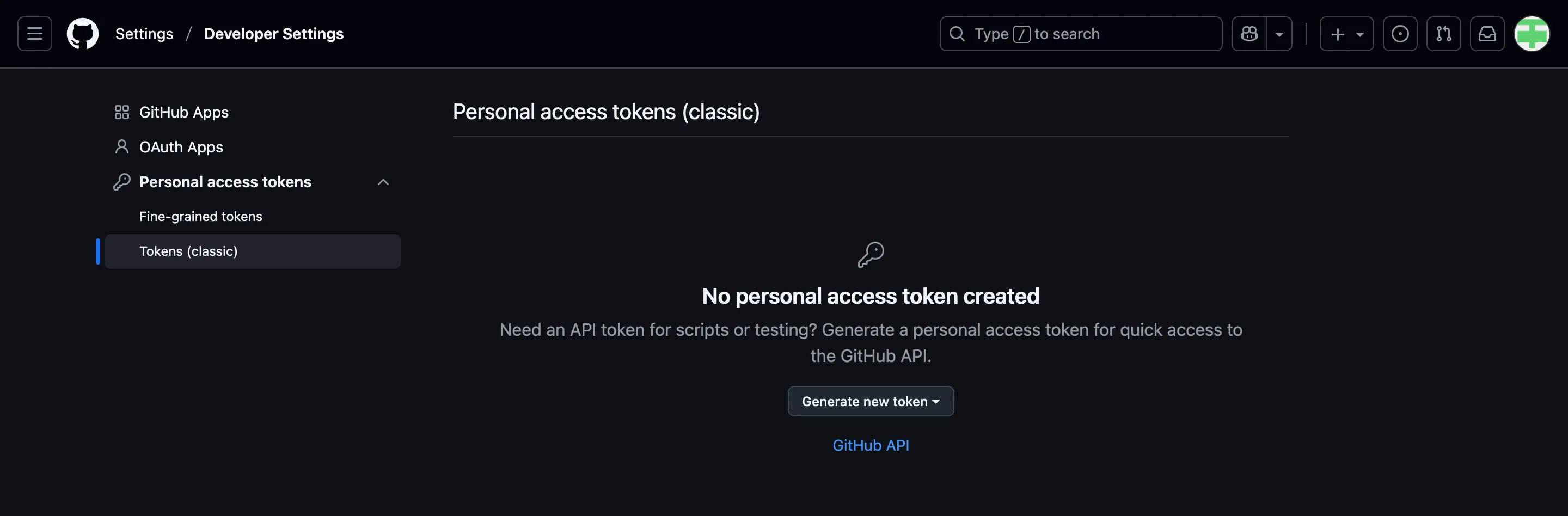
  • Option 1: Go to to https://github.com/settings/tokens and click “Generate token”.

    • Choose Classic Token

    • Describe the token’s purpose in the Note field, e.g. “personal-macbook” or “Stat545Installation”

    • Select “repo”, “user”, and “workflow” for scopes

    • Set an expiry date (can regenerate tokens later)

    • Save this token somewhere so you can use it again later, such as a password manager
Part 1: Set Up

Step 1.4: Configure Your Personal Access Token (PAT) (cont’d)

  • Option 2: From R, execute usethis::create_github_token() in the Console (you may have to install the usethis package first by first running install.packages("usethis")).

    • Describe the token’s purpose in the Note field

    • Set an expiry date (can regenerate tokens later)

    • Save this token somewhere so you can use it again later, such as a password manager

Part 1: Set Up

Step 1.4: Configure Your Personal Access Token (PAT) (cont’d)

Regardless of how you generated your PAT, you now need to:

  • Run install.packages("gitcreds") in the Console

  • Run gitcreds::gitcreds_set() and enter the PAT that you just made when prompted

    • Note: the password will not show up when pasted! Paste once and press enter.

Part 2: Connect GitHub to an Existing R Project

Part 2: Connect GitHub to an Existing R Project

There are two ways that we can connect GitHub and R Projects. The first way we will show is the “R First” approach (i.e., starting with an R Project and creating a repository for it).

In Part 5, we will do the opposite and start with a GitHub repository and create a local version of it.

Part 2: Connect GitHub to an Existing R Project

Step 2.1: Initialize Git

  • Load in the usethis package by calling library(usethis) in the Console.

  • Then, run use_git().

  • When asked to commit changes, select the option that means yes. Restart RStudio if needed.

Part 2: Connect GitHub to an Existing R Project

You should now see a “Git” pane by your Environment/History/Connections.
Part 2: Connect GitHub to an Existing R Project

Step 2.2: Create a GitHub Repository for an Existing Project

  • Run library(usethis) in the Console

  • Then, in the Console run use_github().

  • A new repository on your GitHub account with the same name as your R Project should be created! Head to your GitHub account to check it out.

Part 3: Sync Changes from your Computer

Part 3: Sync Changes from your Computer

To use Git, we should first understand the primary states that files can be in. These are:

  • Modified: you’ve changed something in the files, but Git hasn’t accounted for them yet.

  • Staged: Git has tracked the changes you’ve made, but they haven’t been accounted for in the latest snapshot of your work.

  • Committed: the changes you’ve made have been stored and updated as the latest snapshot of your project.

After changes are committed locally (on your computer), we can push them to a GitHub repository. This sends the changes and updates the most recent version of your project on GitHub.

Part 3: Sync Changes from your Computer

Step 3.1: Make some local changes

  • Edit and save the changes you make to any file in your repository

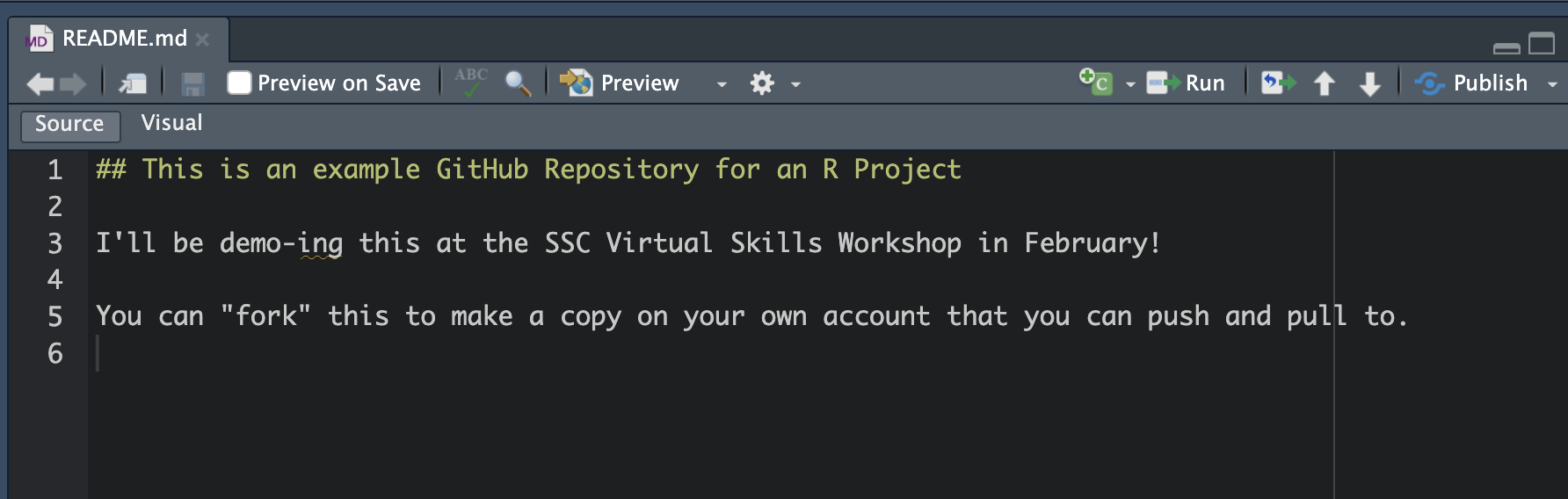
    • Do you have a README file yet? If not, create a new Markdown (not RMarkdown) document named README.md. Use markdown syntax to create a header that contains your repository name and a brief description in plain text.

    • The README file will show up on the home page of your repository on GitHub!

Part 3: Sync Changes from your Computer

Step 3.2: Stage Files

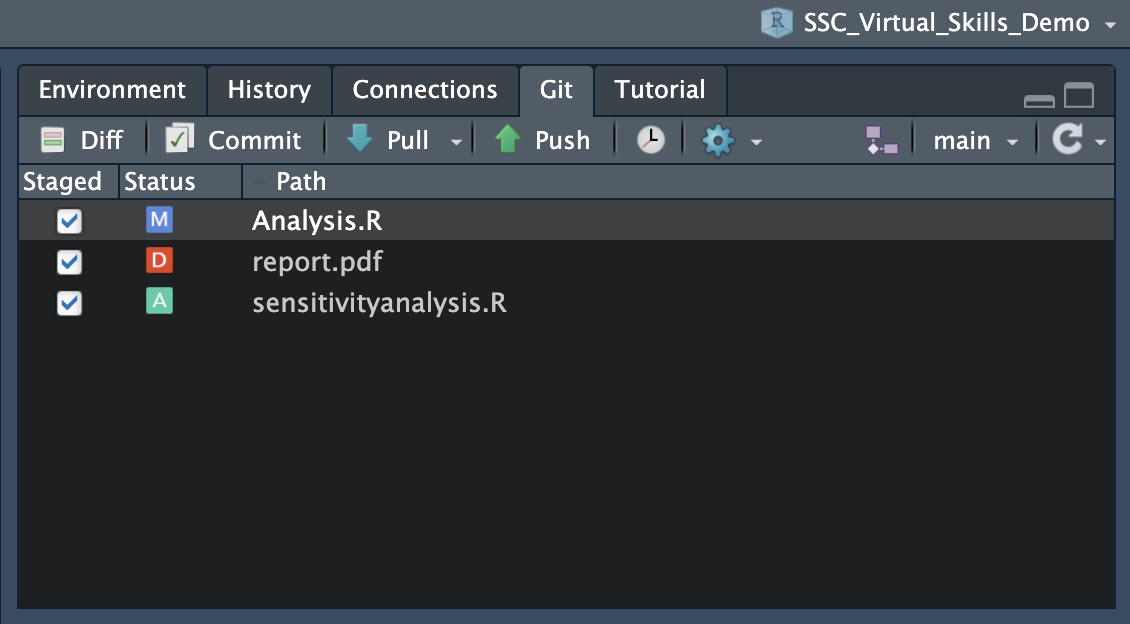
  • Option 1 (Using the Git Pane)

    • Select the files you want to stage by selecting them.

    • You will see symbols beside them - “A” stands for “Added” and “M” stands for “modified”. If you were to delete a file, you would see a red “D”.

Part 3: Sync Changes from your Computer

Step 3.2: Stage Files (cont’d)

  • Option 2 (Using the Terminal)

    • Run git add .. This will stage all of your modified files

    • You can also just name the files you want to commit instead of using .

Part 3: Sync Changes from your Computer

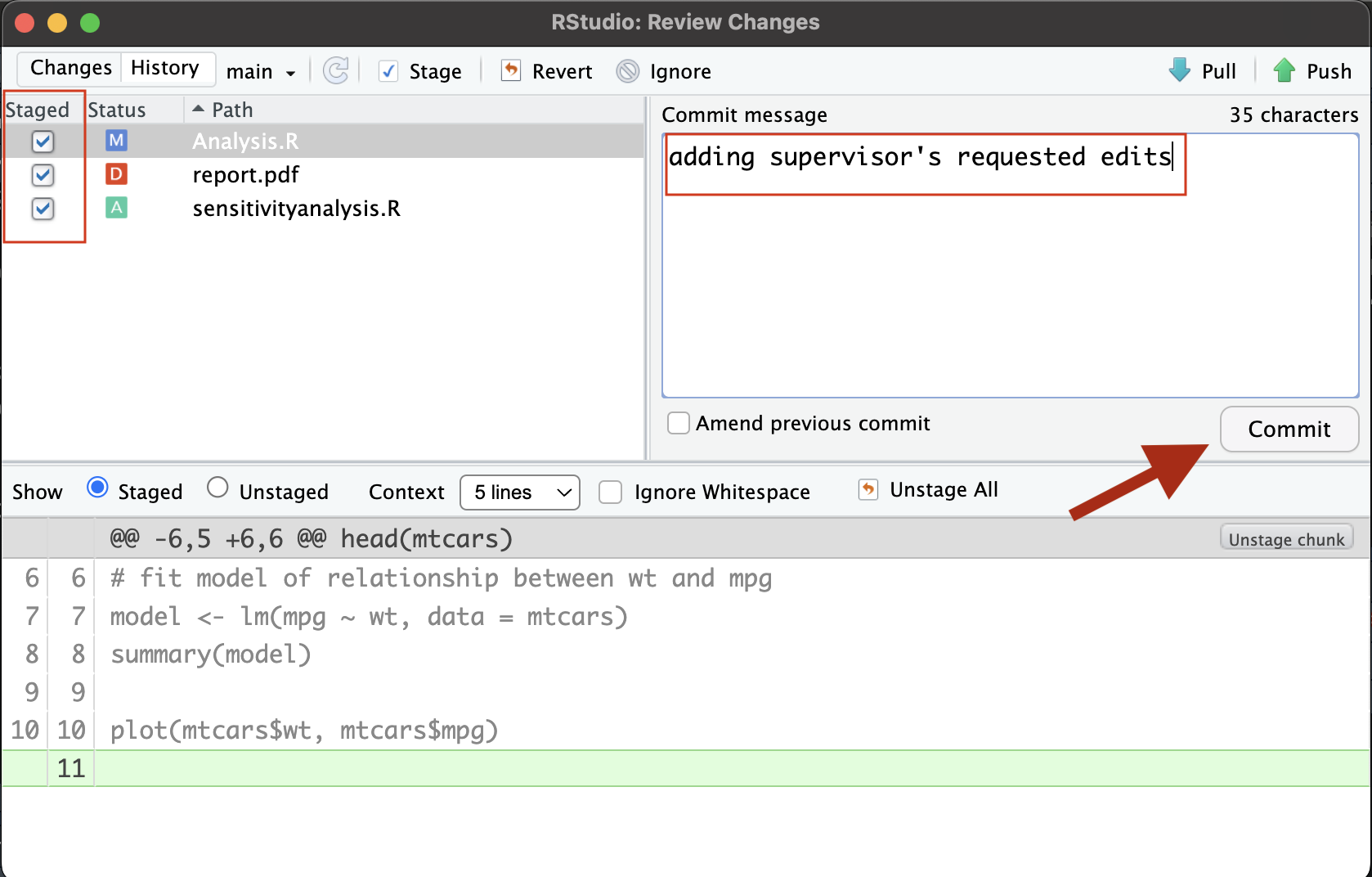
Step 3.3: Commit Changes (save a snapshot of your work!)

  • Option 1 (Using the Git Pane)

    • Click the Commit button.

    • Add a message explaining the changes

    • Click Commit. Close this pop-up.

Part 3: Sync Changes from your Computer

Step 3.3: Commit Changes (save a snapshot of your work, cont’d)

  • Option 2 (Using the Terminal)

    • Run git commit -m "[desciption]" where [description] is a brief summary of the changes.

Part 3: Sync Changes from your Computer

Step 3.4: Push the Changes to GitHub

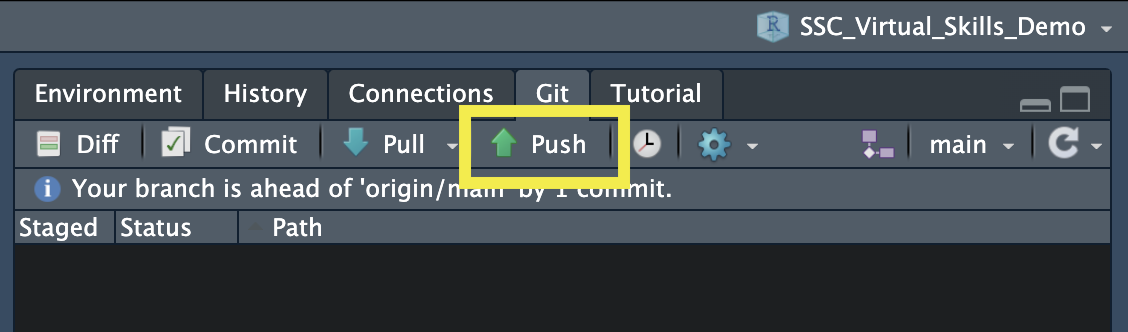
  • Option 1 (Using the Git Pane)

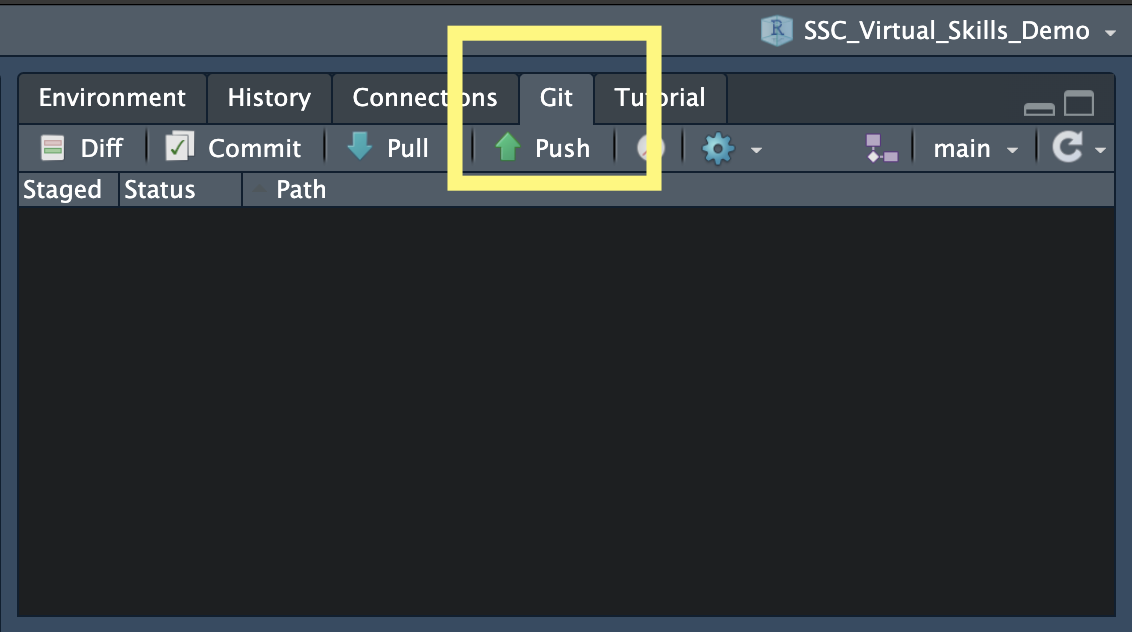
    • Click the Push button

Part 3: Sync Changes from your Computer

Step 3.4: Push the Changes to GitHub (cont’d)

  • Option 2 (Using the Terminal)

    • Run git push origin <branchname> in the Terminal
      • <branchname> is typically main or master. You find the branch name in the Git pane or by using git status

      • In my example, I would run git push origin main

Part 3: Sync Changes from your Computer

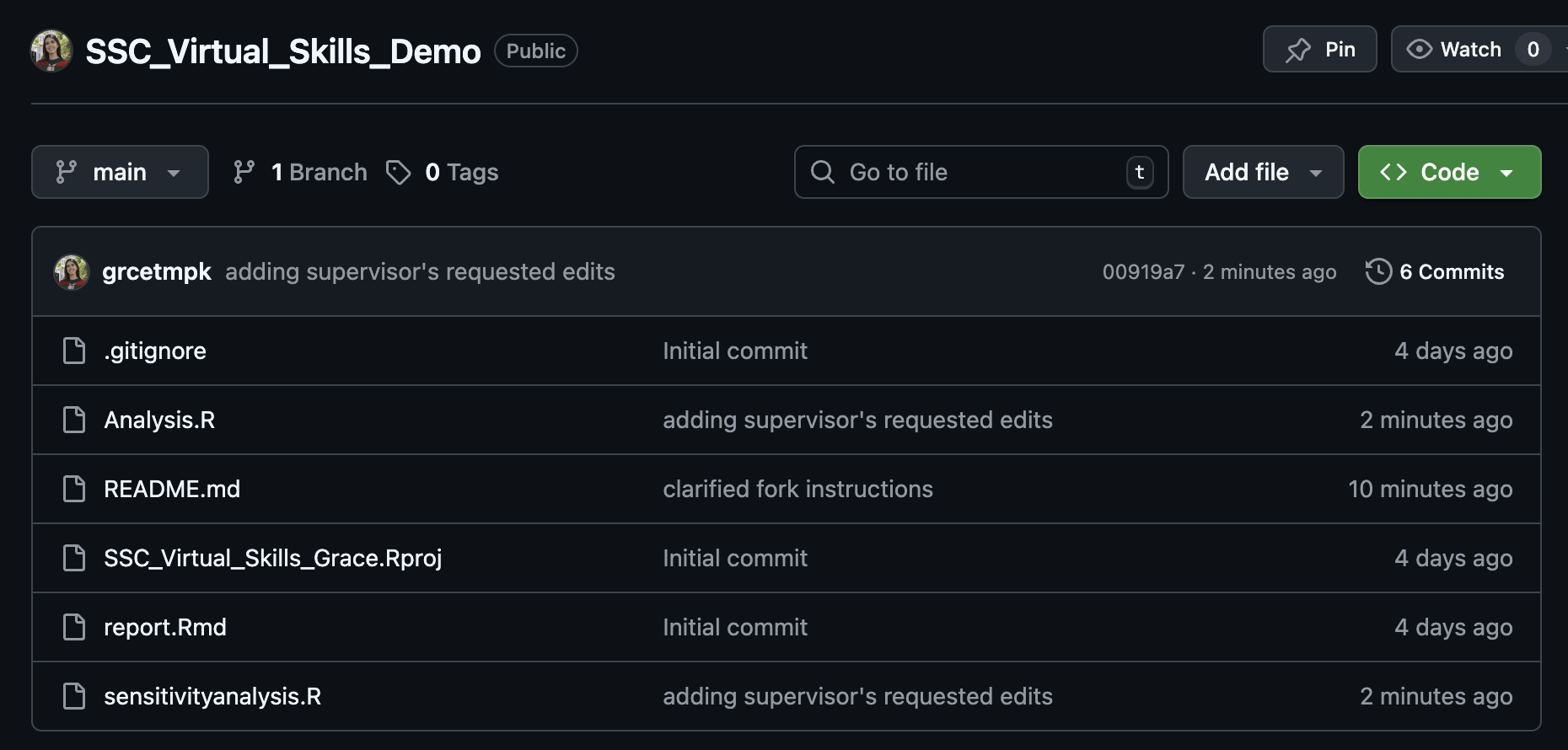
After pushing, you should be able to see the updates on your GitHub repository!

  • Notice the message beside your changed files - those are your commit messages!

Part 4: Pull Changes from GitHub to Your Local Project

Part 4: Pull Changes from GitHub

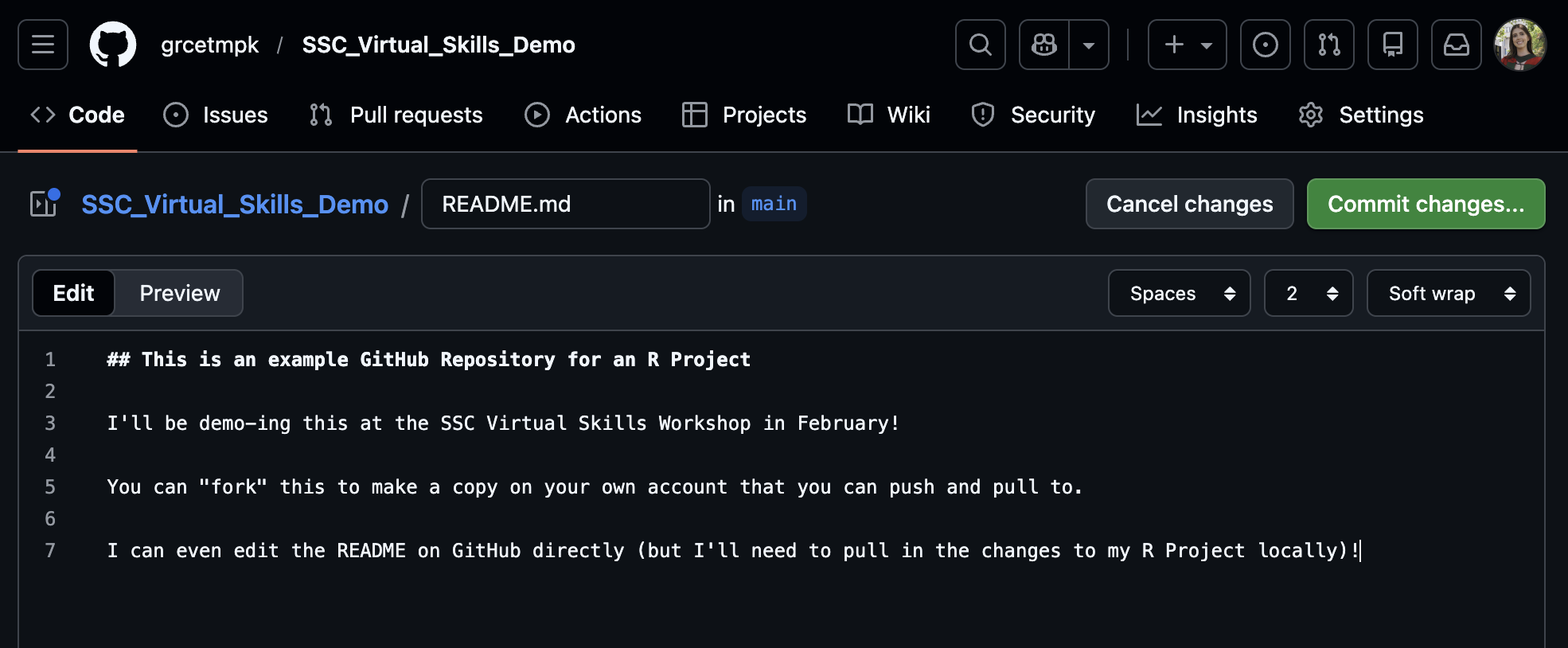
Perhaps you made a change directly on GitHub, or a collaborator pushed changes to Github

These changes are not automatically shown on your local version of your R Project

You need to pull these changes from GitHub to your local version
Part 4: Pull Changes from GitHub

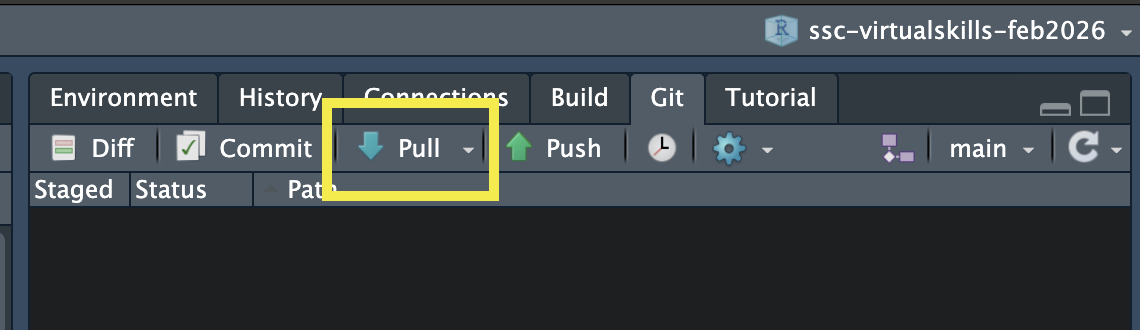
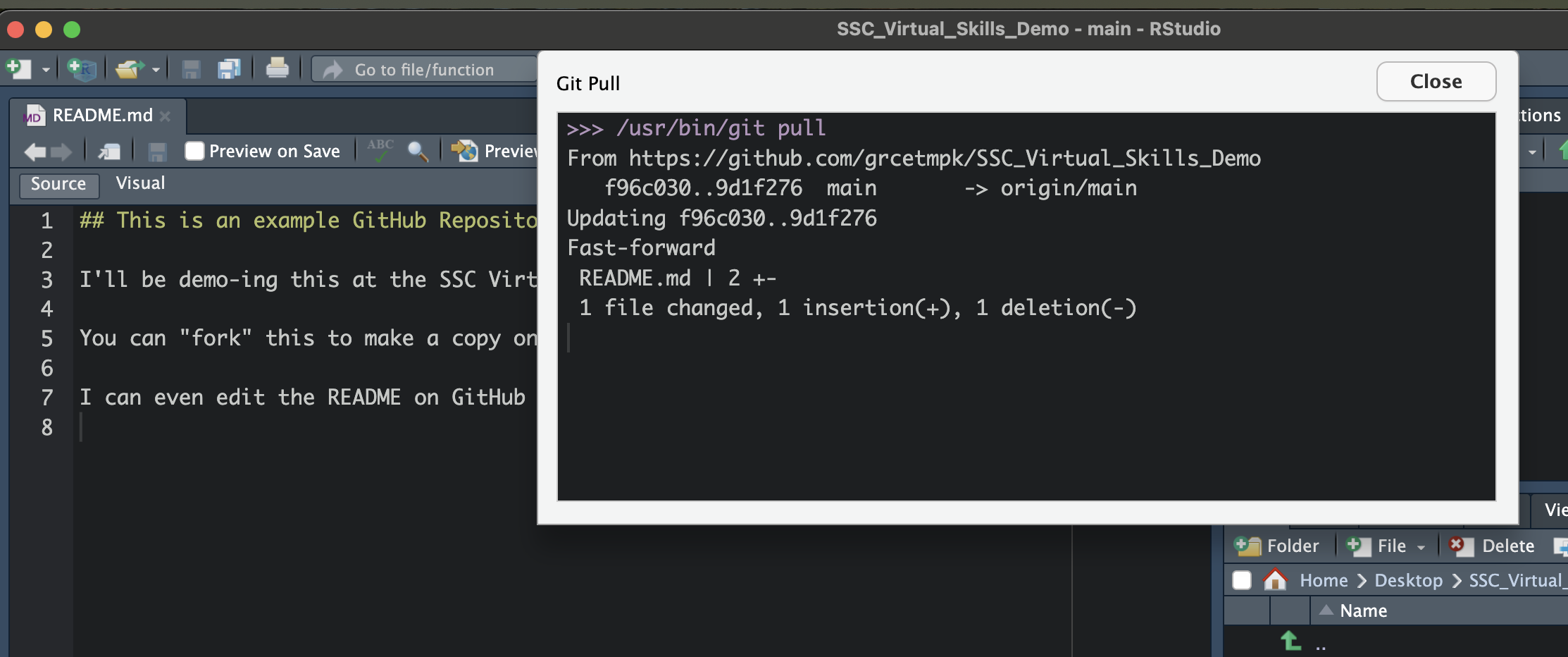
Step 4.1: Pull

  • Option 1 (Using the Git Pane)

    • Click the Push button

Part 4: Pull Changes from GitHub

Step 4.1: Pull

  • Option 2 (Using the Terminal)

    • Run git pull in the Terminal

Part 5: Cloning

Part 5: Cloning

“Cloning” refers to the process of taking an existing repository on GitHub and making a copy on your local computer.

Some tutorials will refer to this as a “GitHub First” approach to syncing your changes to GitHub.

Part 5: Cloning

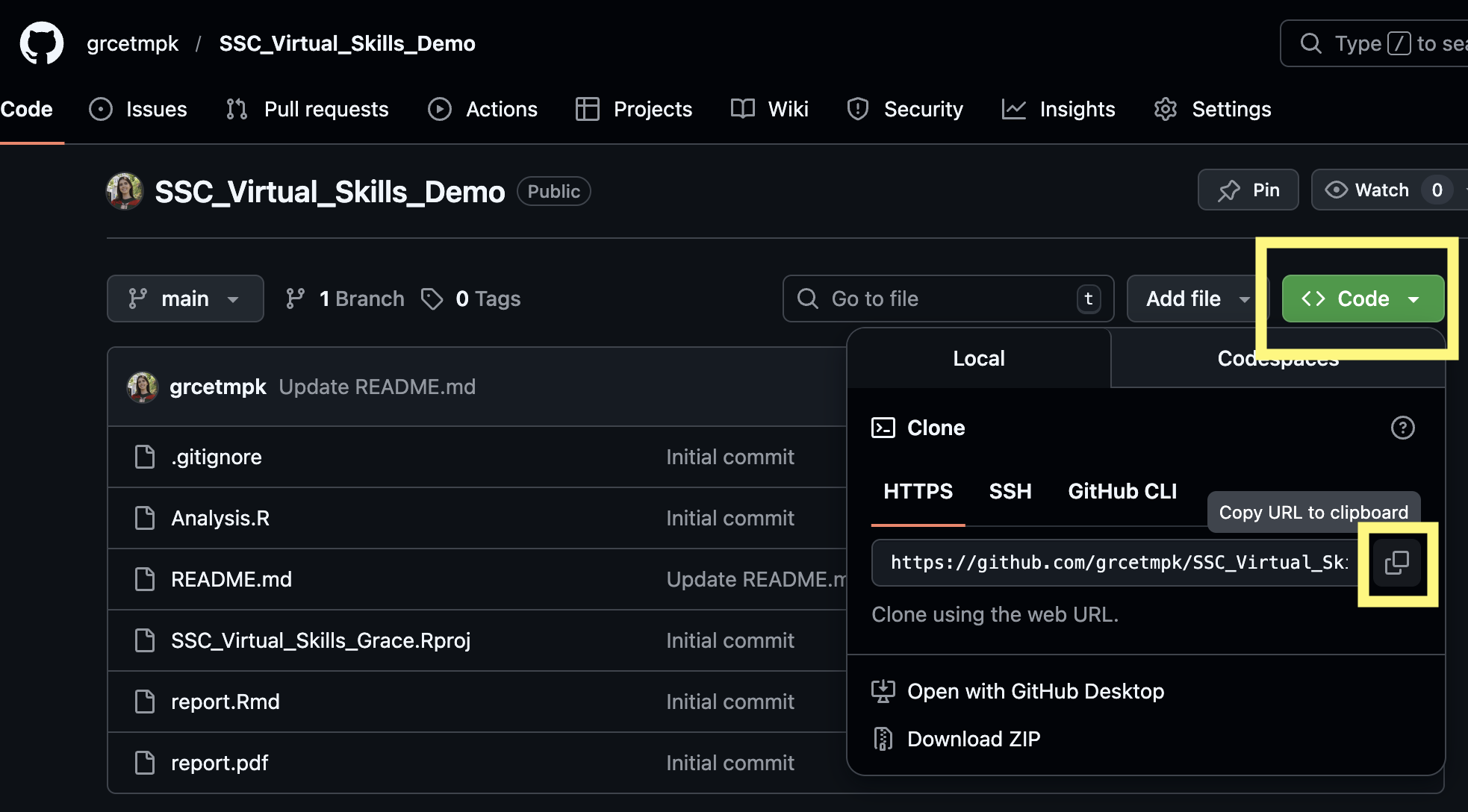
Step 5.1: Copy link to repository

  • Navigate to the repository you want to clone on GitHub.
  • Clicking the green “Code” button to copy the address of the repository.
Part 5: Cloning

Step 5.2: Clone the Repository

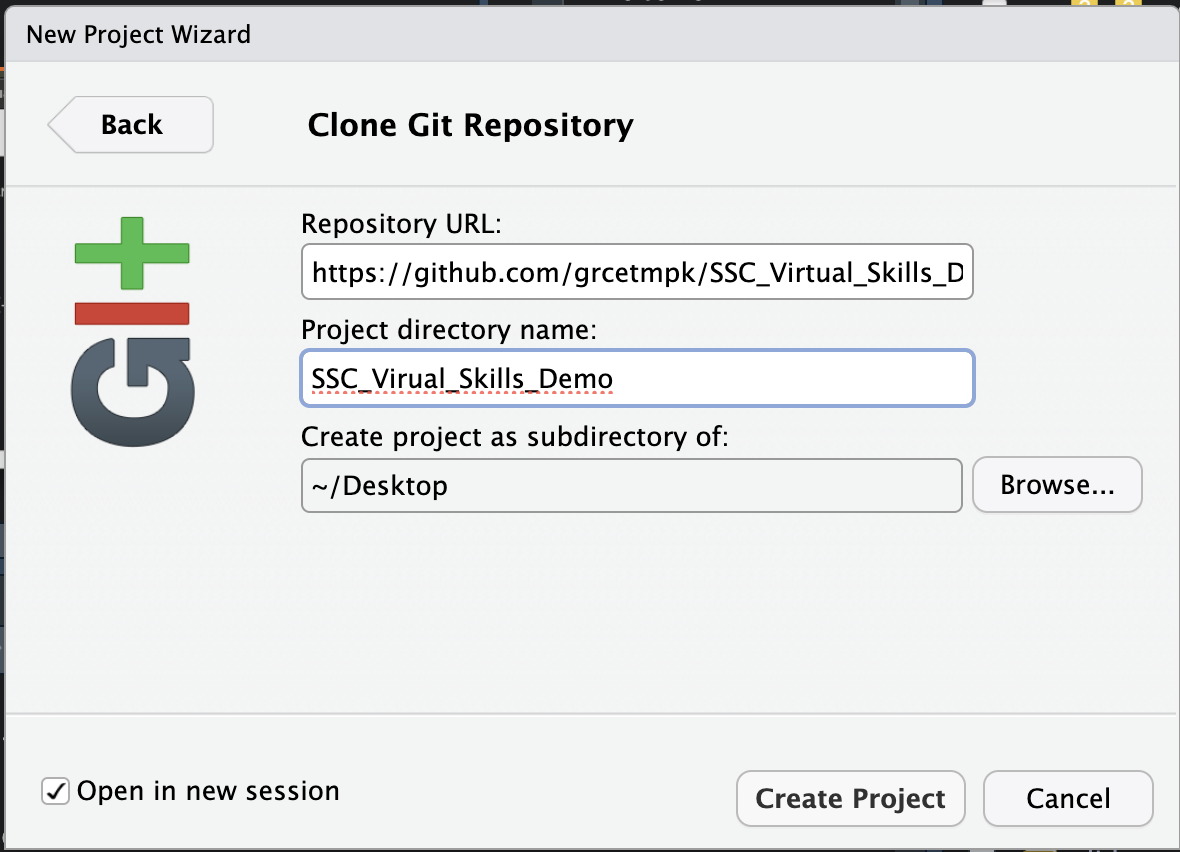
  • In RStudio, go to “File > New Project”

  • Click on “Version Control: Checkout a project from a version control repository”

  • Click on “Git: Clone a project from a repository”

  • Fill in the details:

    • URL: use the HTTPS address (from Step 5.1)

    • Create as a subdirectory of: Browse to where you would like to save this repository on your machine (creates a new folder in the location you select)

Part 5: Cloning

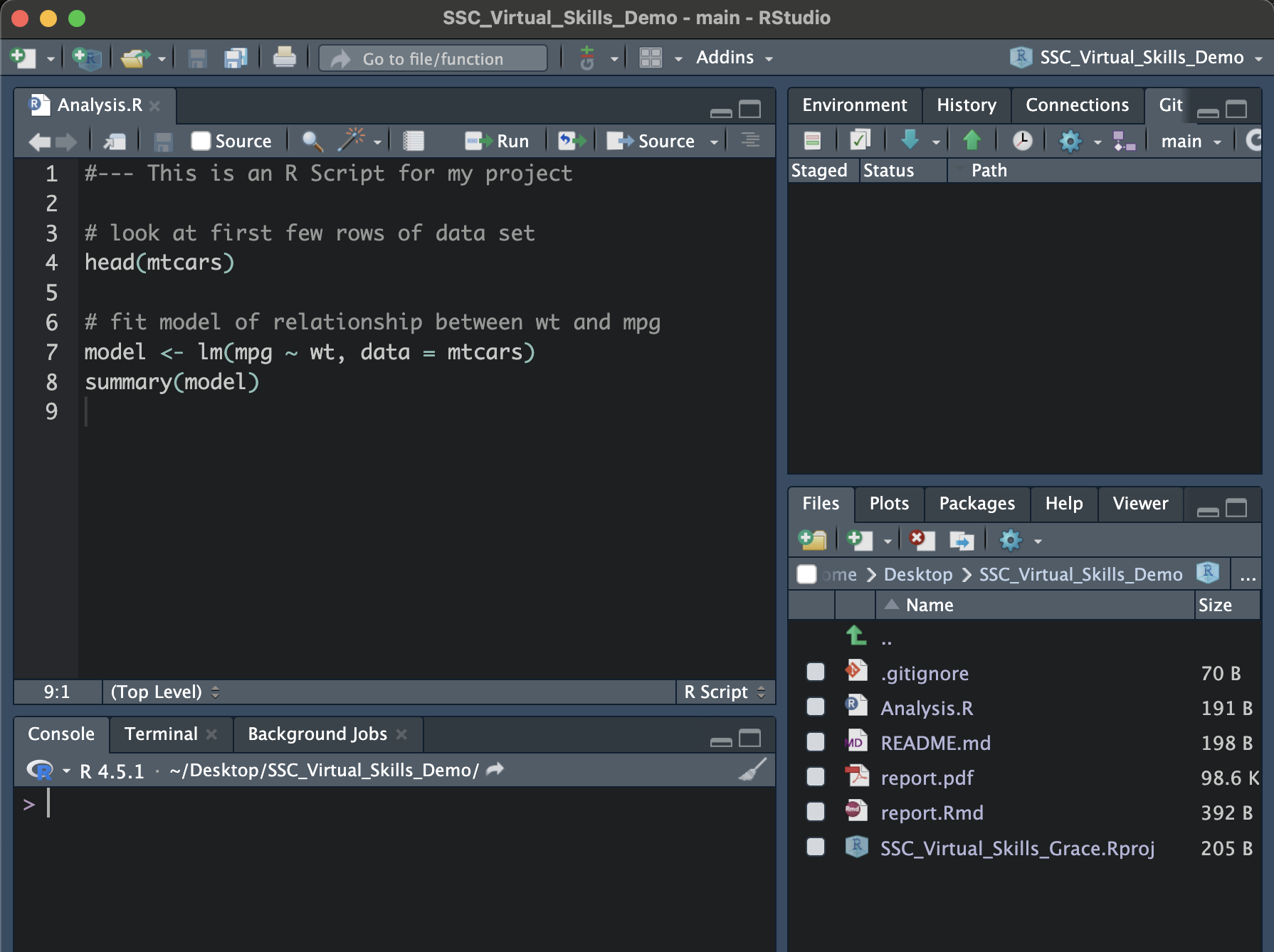
Now you have a local version of this project!

If you have permission to, you can push and pull the same as in Part 4!
Part 5: Cloning

Side note:

Wrap Up

GitHub is a powerful tool that I wish I mastered earlier in my career!

I even have these exact slides on a GitHub repository, built using Quarto (another fun topic for another session 🤭)

More Topics: